Running Rails in the Cloud the Right Way: A Practical Guide to AWS ECS Fargate
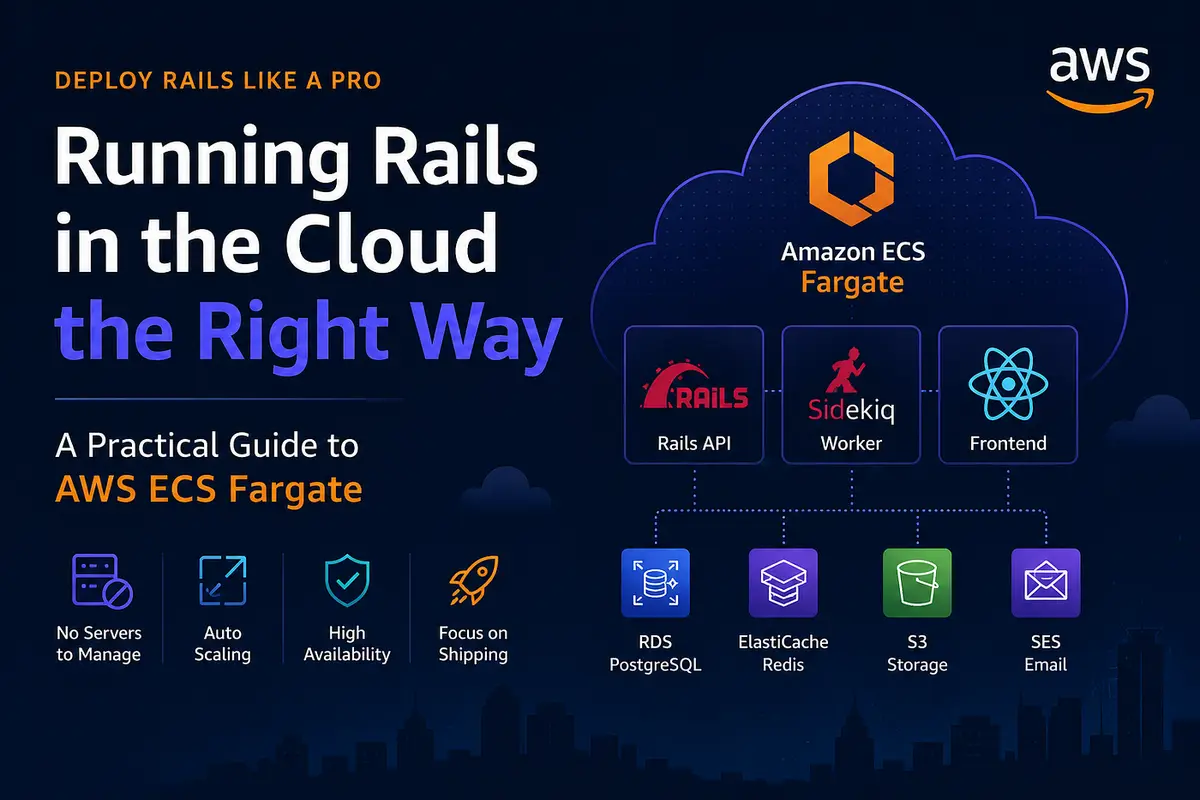
No servers to babysit. No patching at 2 AM. Just your containers, running.
The Problem With “Just Spin Up an EC2”
When most Rails developers first deploy to AWS, the playbook looks something like this: spin up an EC2 instance, SSH in, install Ruby, Nginx, Passenger or Puma, configure systemd, and pray it survives the next OS update.
It works — until it doesn’t. You end up managing servers instead of shipping features. Patches pile up. A single instance becomes a single point of failure. Scaling means manually cloning boxes and updating load balancer configs.
There’s a better way. It’s called ECS Fargate, and once you understand it, you’ll never want to go back to managing EC2 boxes by hand.
What Is ECS?
Amazon Elastic Container Service (ECS) is AWS’s native container orchestration platform. Think of it as a managed version of what Kubernetes does — it runs your Docker containers, keeps them healthy, restarts crashed ones, and distributes traffic across them.
For a typical Rails application, ECS manages all the moving parts:
- Your Rails API container
- Your Sidekiq worker container
- Your frontend container (React, Next.js, or a static build)
ECS handles scheduling, health checking, and restart logic. You just describe what you want running and ECS makes it happen.
What Is Fargate?
Fargate is the compute layer underneath ECS — and it’s the part that changes everything.
Without Fargate, you’d need to provision EC2 instances as the “host machines” for your containers. That means you own the servers: patching, scaling, capacity planning, OS updates, SSH key management — all yours.
With Fargate, AWS owns the servers. You never see them. You just tell AWS:
- Which Docker image to run
- How much CPU and memory it needs
- How many copies to keep alive
AWS handles the rest. No EC2 console. No SSH. No server maintenance windows.
Traditional ECS (EC2 Launch Type):
AWS Account
 └── EC2 Instance (you manage this)
      ├── Rails API Container
      ├── Sidekiq Container
      └── Nginx Container
ECS Fargate:
AWS Account
 └── ECS Cluster (AWS manages the underlying hardware)
      ├── Rails API Container
      ├── Sidekiq Container
      └── Frontend Container
Core Concepts You Need to Know
Before diving into setup, here are four terms you’ll see constantly in ECS.
Cluster
A logical grouping for your services. Think of it as the namespace for your environment.
spark-prod-cluster
spark-staging-cluster
Task Definition
The blueprint for a container — equivalent to a docker run command stored in AWS. It defines:
- Which Docker image to use
- CPU and memory allocation
- Environment variables and secrets
- Port mappings
- IAM role for the container
{
  "family": "rails-api",
  "cpu": "1024",
  "memory": "2048",
  "image": "123456789.dkr.ecr.us-east-1.amazonaws.com/rails-api:latest",
  "portMappings": [{ "containerPort": 3000 }]
}
Task
A running instance of a Task Definition. If you set desired count to 2, ECS runs two tasks — two separate containers running your Rails API simultaneously.
Service
The controller that keeps tasks alive. You define a desired count, and the Service ensures that number of tasks is always running. If a task crashes, the Service starts a new one automatically.
rails-api-service
  Desired count: 2
  Running count: 2  ← ECS keeps these in sync
A Real Rails Architecture on ECS Fargate
Here’s what a production-grade Rails application looks like on Fargate:
Internet
    │
    ▼
Route 53 (DNS)
    │
    ▼
ACM Certificate (HTTPS)
    │
    ▼
Application Load Balancer
    │
    ├──▶ ECS Fargate Cluster
    │         ├── rails-api-service      (2 tasks, port 3000)
    │         ├── sidekiq-worker-service (2 tasks, no port)
    │         └── frontend-service       (2 tasks, port 80)
    │
    └── Supporting Services
              ├── RDS Aurora PostgreSQL
              ├── ElastiCache Redis
              ├── S3 (file storage)
              └── SES (email delivery)
The ALB routes /api/* requests to your Rails service and all other traffic to your frontend service. Sidekiq workers connect to Redis and process background jobs — no inbound traffic needed.
Setting It Up: Step by Step
Step 1: Dockerize Your Rails App
If you don’t have a Dockerfile yet, here's a production-ready starting point:
FROM ruby:3.3-slim

RUN apt-get update -qq && apt-get install -y \
  build-essential \
  libpq-dev \
  curl \
  && rm -rf /var/lib/apt/lists/*
WORKDIR /app
COPY Gemfile Gemfile.lock ./
RUN bundle install --jobs 4 --retry 3
COPY . .
RUN bundle exec rails assets:precompile RAILS_ENV=production
EXPOSE 3000
CMD ["bundle", "exec", "puma", "-C", "config/puma.rb"]
Build and push to Amazon ECR (Elastic Container Registry):
# Authenticate Docker to ECR
aws ecr get-login-password --region us-east-1 | \
  docker login --username AWS --password-stdin \
  123456789.dkr.ecr.us-east-1.amazonaws.com

# Build and push
docker build -t rails-api .
docker tag rails-api:latest 123456789.dkr.ecr.us-east-1.amazonaws.com/rails-api:latest
docker push 123456789.dkr.ecr.us-east-1.amazonaws.com/rails-api:latest
Step 2: Create the ECS Cluster
Using the AWS CLI:
aws ecs create-cluster \
  --cluster-name my-app-prod \
  --capacity-providers FARGATE \
  --region us-east-1
Or with the console: ECS → Clusters → Create Cluster → select AWS Fargate.
Step 3: Write Your Task Definition
{
  "family": "rails-api",
  "networkMode": "awsvpc",
  "requiresCompatibilities": ["FARGATE"],
  "cpu": "1024",
  "memory": "2048",
  "executionRoleArn": "arn:aws:iam::123456789:role/ecsTaskExecutionRole",
  "taskRoleArn": "arn:aws:iam::123456789:role/railsAppRole",
  "containerDefinitions": [
    {
      "name": "rails-api",
      "image": "123456789.dkr.ecr.us-east-1.amazonaws.com/rails-api:latest",
      "portMappings": [{ "containerPort": 3000, "protocol": "tcp" }],
      "environment": [
        { "name": "RAILS_ENV", "value": "production" },
        { "name": "RAILS_LOG_TO_STDOUT", "value": "true" }
      ],
      "secrets": [
        {
          "name": "DATABASE_URL",
          "valueFrom": "arn:aws:secretsmanager:us-east-1:123456789:secret:prod/rails/database-url"
        },
        {
          "name": "SECRET_KEY_BASE",
          "valueFrom": "arn:aws:secretsmanager:us-east-1:123456789:secret:prod/rails/secret-key-base"
        }
      ],
      "logConfiguration": {
        "logDriver": "awslogs",
        "options": {
          "awslogs-group": "/ecs/rails-api",
          "awslogs-region": "us-east-1",
          "awslogs-stream-prefix": "ecs"
        }
      },
      "healthCheck": {
        "command": ["CMD-SHELL", "curl -f http://localhost:3000/health || exit 1"],
        "interval": 30,
        "timeout": 5,
        "retries": 3
      }
    }
  ]
}
Register it:
aws ecs register-task-definition \
  --cli-input-json file://task-definition.json
Step 4: Create the ECS Service
aws ecs create-service \
  --cluster my-app-prod \
  --service-name rails-api-service \
  --task-definition rails-api:1 \
  --desired-count 2 \
  --launch-type FARGATE \
  --network-configuration "awsvpcConfiguration={
    subnets=[subnet-abc123,subnet-def456],
    securityGroups=[sg-xyz789],
    assignPublicIp=DISABLED
  }" \
  --load-balancers "targetGroupArn=arn:aws:elasticloadbalancing:...,containerName=rails-api,containerPort=3000"
ECS will immediately start pulling your Docker image and launch two running tasks.
Step 5: Run Database Migrations
One gotcha with containers: you can’t ssh in to run rails db:migrate. Instead, use ECS Run Task — a one-off task that runs your migration command and exits:
aws ecs run-task \
  --cluster my-app-prod \
  --task-definition rails-api:1 \
  --launch-type FARGATE \
  --network-configuration "awsvpcConfiguration={
    subnets=[subnet-abc123],
    securityGroups=[sg-xyz789],
    assignPublicIp=DISABLED
  }" \
  --overrides '{
    "containerOverrides": [{
      "name": "rails-api",
      "command": ["bundle", "exec", "rails", "db:migrate"]
    }]
  }'
Plug this into your CI/CD pipeline before deploying the new task definition.
The Sidekiq Worker Service
Sidekiq runs as a separate ECS service — same Docker image, different startup command. No load balancer needed since it doesn’t accept inbound traffic.
Task definition override for Sidekiq:
{
  "family": "sidekiq-worker",
  "containerDefinitions": [
    {
      "name": "sidekiq",
      "image": "123456789.dkr.ecr.us-east-1.amazonaws.com/rails-api:latest",
      "command": ["bundle", "exec", "sidekiq", "-C", "config/sidekiq.yml"],
      "environment": [
        { "name": "RAILS_ENV", "value": "production" }
      ],
      "secrets": [
        { "name": "DATABASE_URL", "valueFrom": "..." },
        { "name": "REDIS_URL", "valueFrom": "..." }
      ]
    }
  ]
}
Scale workers independently from your API — during heavy job periods, bump Sidekiq to 4 tasks without touching the API service.
Auto Scaling
ECS + Fargate + Application Auto Scaling is a powerful combination. Configure scaling policies to automatically add tasks when CPU or memory is high:
# Register the scalable target
aws application-autoscaling register-scalable-target \
  --service-namespace ecs \
  --resource-id service/my-app-prod/rails-api-service \
  --scalable-dimension ecs:service:DesiredCount \
  --min-capacity 2 \
  --max-capacity 10

# Create a scaling policy based on CPU
aws application-autoscaling put-scaling-policy \
  --service-namespace ecs \
  --resource-id service/my-app-prod/rails-api-service \
  --scalable-dimension ecs:service:DesiredCount \
  --policy-name cpu-tracking \
  --policy-type TargetTrackingScaling \
  --target-tracking-scaling-policy-configuration '{
    "TargetValue": 70.0,
    "PredefinedMetricSpecification": {
      "PredefinedMetricType": "ECSServiceAverageCPUUtilization"
    },
    "ScaleOutCooldown": 60,
    "ScaleInCooldown": 300
  }'
Infrastructure as Code with Terraform
Running aws ecs create-service commands by hand works once. The second time you need a staging environment, or a teammate tries to replicate your setup, you're copy-pasting commands and hoping nothing drifts. Terraform solves this by treating your infrastructure like code — version-controlled, reviewable, and reproducible with a single command.
This section is a full walkthrough: installing Terraform, structuring your project, writing every resource you need, and deploying it all.
Installing Terraform
macOS (Homebrew):
brew tap hashicorp/tap
brew install hashicorp/tap/terraform
Linux (Ubuntu/Debian):
wget -O- https://apt.releases.hashicorp.com/gpg | sudo gpg --dearmor -o /usr/share/keyrings/hashicorp-archive-keyring.gpg
echo "deb [signed-by=/usr/share/keyrings/hashicorp-archive-keyring.gpg] https://apt.releases.hashicorp.com $(lsb_release -cs) main" | sudo tee /etc/apt/sources.list.d/hashicorp.list
sudo apt update && sudo apt install terraform
Verify:
terraform -v
# Terraform v1.8.x
You’ll also need the AWS CLI configured with credentials:
aws configure
# AWS Access Key ID: ...
# AWS Secret Access Key: ...
# Default region name: us-east-1
Project Structure
A clean Terraform project for ECS Fargate looks like this:
infrastructure/
├── main.tf              # Provider config and backend
├── variables.tf         # All input variables
├── outputs.tf           # Useful outputs after apply
├── vpc.tf               # VPC, subnets, NAT Gateway
├── ecr.tf               # Container registries
├── iam.tf               # ECS execution and task roles
├── security_groups.tf   # Firewall rules
├── alb.tf               # Load balancer and target groups
├── ecs.tf               # Cluster, task definitions, services
├── rds.tf               # PostgreSQL database
├── redis.tf             # ElastiCache for Sidekiq
├── secrets.tf           # Secrets Manager entries
├── autoscaling.tf       # Auto scaling policies
├── cloudwatch.tf        # Log groups and alarms
└── terraform.tfvars     # Your actual values (never commit secrets)
This keeps each concern in its own file — much easier to navigate than one giant main.tf.
main.tf — Provider and Remote State
terraform {
  required_version = ">= 1.6"

required_providers {
    aws = {
      source  = "hashicorp/aws"
      version = "~> 5.0"
    }
  }
  # Store state remotely so your team shares it
  backend "s3" {
    bucket         = "my-app-terraform-state"
    key            = "prod/terraform.tfstate"
    region         = "us-east-1"
    dynamodb_table = "terraform-state-lock"
    encrypt        = true
  }
}
provider "aws" {
  region = var.aws_region
  default_tags {
    tags = {
      Project     = var.app_name
      Environment = var.environment
      ManagedBy   = "terraform"
    }
  }
}
The S3 backend stores your state file remotely so it isn’t lost and your team can collaborate without overwriting each other’s changes. The DynamoDB table provides state locking — only one terraform apply can run at a time.
Create the backend resources once manually before your first apply:
aws s3api create-bucket --bucket my-app-terraform-state --region us-east-1
aws dynamodb create-table \
  --table-name terraform-state-lock \
  --attribute-definitions AttributeName=LockID,AttributeType=S \
  --key-schema AttributeName=LockID,KeyType=HASH \
  --billing-mode PAY_PER_REQUEST
variables.tf — All Inputs in One Place
variable "app_name" {
  description = "Application name, used as a prefix for all resources"
  type        = string
  default     = "my-app"
}
variable "environment" {
  description = "Deployment environment (prod, staging)"
  type        = string
}
variable "aws_region" {
  description = "AWS region to deploy into"
  type        = string
  default     = "us-east-1"
}
variable "rails_image_tag" {
  description = "Docker image tag to deploy"
  type        = string
  default     = "latest"
}
variable "api_desired_count" {
  description = "Number of Rails API tasks to run"
  type        = number
  default     = 2
}
variable "sidekiq_desired_count" {
  description = "Number of Sidekiq worker tasks to run"
  type        = number
  default     = 2
}
variable "api_cpu" {
  description = "CPU units for Rails API task (1024 = 1 vCPU)"
  type        = number
  default     = 1024
}
variable "api_memory" {
  description = "Memory in MB for Rails API task"
  type        = number
  default     = 2048
}
variable "db_instance_class" {
  description = "RDS instance type"
  type        = string
  default     = "db.t3.medium"
}
variable "db_name" {
  description = "PostgreSQL database name"
  type        = string
}
variable "db_username" {
  description = "PostgreSQL master username"
  type        = string
}
Your terraform.tfvars fills these in:
# terraform.tfvars — commit this (without secrets)
app_name    = "spark"
environment = "prod"
aws_region  = "us-east-1"
db_name     = "spark_production"
db_username = "spark"
vpc.tf — Networking Foundation
# Get available AZs automatically
data "aws_availability_zones" "available" {}

resource "aws_vpc" "main" {
  cidr_block           = "10.0.0.0/16"
  enable_dns_hostnames = true
  enable_dns_support   = true
  tags = { Name = "${var.app_name}-${var.environment}-vpc" }
}
# Public subnets - for the load balancer
resource "aws_subnet" "public" {
  count             = 2
  vpc_id            = aws_vpc.main.id
  cidr_block        = "10.0.${count.index}.0/24"
  availability_zone = data.aws_availability_zones.available.names[count.index]
  tags = { Name = "${var.app_name}-public-${count.index + 1}" }
}
# Private subnets - for ECS tasks, RDS, Redis
resource "aws_subnet" "private" {
  count             = 2
  vpc_id            = aws_vpc.main.id
  cidr_block        = "10.0.${count.index + 10}.0/24"
  availability_zone = data.aws_availability_zones.available.names[count.index]
  tags = { Name = "${var.app_name}-private-${count.index + 1}" }
}
# Internet Gateway for public subnets
resource "aws_internet_gateway" "main" {
  vpc_id = aws_vpc.main.id
}
# Elastic IP and NAT Gateway - lets private subnet reach the internet
resource "aws_eip" "nat" {
  domain = "vpc"
}
resource "aws_nat_gateway" "main" {
  allocation_id = aws_eip.nat.id
  subnet_id     = aws_subnet.public[0].id
  depends_on    = [aws_internet_gateway.main]
}
# Route tables
resource "aws_route_table" "public" {
  vpc_id = aws_vpc.main.id
  route {
    cidr_block = "0.0.0.0/0"
    gateway_id = aws_internet_gateway.main.id
  }
}
resource "aws_route_table" "private" {
  vpc_id = aws_vpc.main.id
  route {
    cidr_block     = "0.0.0.0/0"
    nat_gateway_id = aws_nat_gateway.main.id
  }
}
resource "aws_route_table_association" "public" {
  count          = 2
  subnet_id      = aws_subnet.public[count.index].id
  route_table_id = aws_route_table.public.id
}
resource "aws_route_table_association" "private" {
  count          = 2
  subnet_id      = aws_subnet.private[count.index].id
  route_table_id = aws_route_table.private.id
}
ecr.tf — Container Registries
resource "aws_ecr_repository" "rails_api" {
  name                 = "${var.app_name}/rails-api"
  image_tag_mutability = "MUTABLE"
  image_scanning_configuration {
    scan_on_push = true  # Automatically scan images for vulnerabilities
  }
}
resource "aws_ecr_repository" "sidekiq" {
  name                 = "${var.app_name}/sidekiq"
  image_tag_mutability = "MUTABLE"
  image_scanning_configuration {
    scan_on_push = true
  }
}
# Clean up old images automatically - keep last 10
resource "aws_ecr_lifecycle_policy" "rails_api" {
  repository = aws_ecr_repository.rails_api.name
  policy = jsonencode({
    rules = [{
      rulePriority = 1
      description  = "Keep last 10 images"
      selection = {
        tagStatus   = "any"
        countType   = "imageCountMoreThan"
        countNumber = 10
      }
      action = { type = "expire" }
    }]
  })
}
iam.tf — Permissions
ECS needs two IAM roles: one for the ECS agent (to pull images and write logs) and one for your application code (to access S3, SES, Secrets Manager, etc.).
# ECS Task Execution Role — used by the ECS agent
resource "aws_iam_role" "ecs_execution" {
  name = "${var.app_name}-ecs-execution-role"
  assume_role_policy = jsonencode({
    Version = "2012-10-17"
    Statement = [{
      Action    = "sts:AssumeRole"
      Effect    = "Allow"
      Principal = { Service = "ecs-tasks.amazonaws.com" }
    }]
  })
}
resource "aws_iam_role_policy_attachment" "ecs_execution" {
  role       = aws_iam_role.ecs_execution.name
  policy_arn = "arn:aws:iam::aws:policy/service-role/AmazonECSTaskExecutionRolePolicy"
}
# Allow ECS to pull secrets from Secrets Manager
resource "aws_iam_role_policy" "ecs_execution_secrets" {
  name = "secrets-access"
  role = aws_iam_role.ecs_execution.id
  policy = jsonencode({
    Version = "2012-10-17"
    Statement = [{
      Effect   = "Allow"
      Action   = ["secretsmanager:GetSecretValue"]
      Resource = "arn:aws:secretsmanager:${var.aws_region}:*:secret:${var.app_name}/${var.environment}/*"
    }]
  })
}
# Application Task Role - used by your Rails code
resource "aws_iam_role" "rails_app" {
  name = "${var.app_name}-rails-app-role"
  assume_role_policy = jsonencode({
    Version = "2012-10-17"
    Statement = [{
      Action    = "sts:AssumeRole"
      Effect    = "Allow"
      Principal = { Service = "ecs-tasks.amazonaws.com" }
    }]
  })
}
resource "aws_iam_role_policy" "rails_app_s3" {
  name = "s3-access"
  role = aws_iam_role.rails_app.id
  policy = jsonencode({
    Version = "2012-10-17"
    Statement = [{
      Effect = "Allow"
      Action = ["s3:GetObject", "s3:PutObject", "s3:DeleteObject"]
      Resource = "arn:aws:s3:::${var.app_name}-${var.environment}-uploads/*"
    }]
  })
}
security_groups.tf — Firewall Rules
# ALB — accepts HTTPS from anywhere
resource "aws_security_group" "alb" {
  name   = "${var.app_name}-alb-sg"
  vpc_id = aws_vpc.main.id
  ingress {
    from_port   = 443
    to_port     = 443
    protocol    = "tcp"
    cidr_blocks = ["0.0.0.0/0"]
  }
  ingress {
    from_port   = 80
    to_port     = 80
    protocol    = "tcp"
    cidr_blocks = ["0.0.0.0/0"]
  }
  egress {
    from_port   = 0
    to_port     = 0
    protocol    = "-1"
    cidr_blocks = ["0.0.0.0/0"]
  }
}
# ECS Tasks - only accepts traffic from the ALB
resource "aws_security_group" "ecs_tasks" {
  name   = "${var.app_name}-ecs-tasks-sg"
  vpc_id = aws_vpc.main.id
  ingress {
    from_port       = 3000
    to_port         = 3000
    protocol        = "tcp"
    security_groups = [aws_security_group.alb.id]
  }
  egress {
    from_port   = 0
    to_port     = 0
    protocol    = "-1"
    cidr_blocks = ["0.0.0.0/0"]
  }
}
# RDS - only accepts traffic from ECS tasks
resource "aws_security_group" "rds" {
  name   = "${var.app_name}-rds-sg"
  vpc_id = aws_vpc.main.id
  ingress {
    from_port       = 5432
    to_port         = 5432
    protocol        = "tcp"
    security_groups = [aws_security_group.ecs_tasks.id]
  }
}
# Redis - only accepts traffic from ECS tasks
resource "aws_security_group" "redis" {
  name   = "${var.app_name}-redis-sg"
  vpc_id = aws_vpc.main.id
  ingress {
    from_port       = 6379
    to_port         = 6379
    protocol        = "tcp"
    security_groups = [aws_security_group.ecs_tasks.id]
  }
}
alb.tf — Load Balancer
resource "aws_lb" "main" {
  name               = "${var.app_name}-${var.environment}-alb"
  internal           = false
  load_balancer_type = "application"
  security_groups    = [aws_security_group.alb.id]
  subnets            = aws_subnet.public[*].id
}

# Target group for the Rails API
resource "aws_lb_target_group" "rails_api" {
  name        = "${var.app_name}-api-tg"
  port        = 3000
  protocol    = "HTTP"
  vpc_id      = aws_vpc.main.id
  target_type = "ip"  # Required for Fargate
  health_check {
    enabled             = true
    path                = "/health"
    healthy_threshold   = 2
    unhealthy_threshold = 3
    timeout             = 5
    interval            = 30
    matcher             = "200"
  }
}
# HTTPS listener (recommended for production)
resource "aws_lb_listener" "https" {
  load_balancer_arn = aws_lb.main.arn
  port              = "443"
  protocol          = "HTTPS"
  ssl_policy        = "ELBSecurityPolicy-TLS13-1-2-2021-06"
  certificate_arn   = var.acm_certificate_arn
  default_action {
    type             = "forward"
    target_group_arn = aws_lb_target_group.rails_api.arn
  }
}
# HTTP → HTTPS redirect
resource "aws_lb_listener" "http_redirect" {
  load_balancer_arn = aws_lb.main.arn
  port              = "80"
  protocol          = "HTTP"
  default_action {
    type = "redirect"
    redirect {
      port        = "443"
      protocol    = "HTTPS"
      status_code = "HTTP_301"
    }
  }
}
ecs.tf — The Core
resource "aws_ecs_cluster" "main" {
  name = "${var.app_name}-${var.environment}"
  setting {
    name  = "containerInsights"
    value = "enabled"
  }
}
# CloudWatch log group for the API
resource "aws_cloudwatch_log_group" "rails_api" {
  name              = "/ecs/${var.app_name}/rails-api"
  retention_in_days = 30
}
resource "aws_cloudwatch_log_group" "sidekiq" {
  name              = "/ecs/${var.app_name}/sidekiq"
  retention_in_days = 30
}
# Rails API Task Definition
resource "aws_ecs_task_definition" "rails_api" {
  family                   = "${var.app_name}-rails-api"
  network_mode             = "awsvpc"
  requires_compatibilities = ["FARGATE"]
  cpu                      = var.api_cpu
  memory                   = var.api_memory
  execution_role_arn       = aws_iam_role.ecs_execution.arn
  task_role_arn            = aws_iam_role.rails_app.arn
  container_definitions = jsonencode([{
    name  = "rails-api"
    image = "${aws_ecr_repository.rails_api.repository_url}:${var.rails_image_tag}"
    portMappings = [{
      containerPort = 3000
      protocol      = "tcp"
    }]
    environment = [
      { name = "RAILS_ENV",            value = "production" },
      { name = "RAILS_LOG_TO_STDOUT",  value = "true" },
      { name = "RAILS_SERVE_STATIC_FILES", value = "true" }
    ]
    secrets = [
      {
        name      = "DATABASE_URL"
        valueFrom = aws_secretsmanager_secret.database_url.arn
      },
      {
        name      = "REDIS_URL"
        valueFrom = aws_secretsmanager_secret.redis_url.arn
      },
      {
        name      = "SECRET_KEY_BASE"
        valueFrom = aws_secretsmanager_secret.secret_key_base.arn
      }
    ]
    logConfiguration = {
      logDriver = "awslogs"
      options = {
        "awslogs-group"         = aws_cloudwatch_log_group.rails_api.name
        "awslogs-region"        = var.aws_region
        "awslogs-stream-prefix" = "ecs"
      }
    }
    healthCheck = {
      command     = ["CMD-SHELL", "curl -f http://localhost:3000/health || exit 1"]
      interval    = 30
      timeout     = 5
      retries     = 3
      startPeriod = 60
    }
  }])
}
# Rails API Service
resource "aws_ecs_service" "rails_api" {
  name                               = "${var.app_name}-rails-api"
  cluster                            = aws_ecs_cluster.main.id
  task_definition                    = aws_ecs_task_definition.rails_api.arn
  desired_count                      = var.api_desired_count
  launch_type                        = "FARGATE"
  health_check_grace_period_seconds  = 60
  network_configuration {
    subnets          = aws_subnet.private[*].id
    security_groups  = [aws_security_group.ecs_tasks.id]
    assign_public_ip = false
  }
  load_balancer {
    target_group_arn = aws_lb_target_group.rails_api.arn
    container_name   = "rails-api"
    container_port   = 3000
  }
  deployment_circuit_breaker {
    enable   = true
    rollback = true   # Auto-rollback if new tasks fail health checks
  }
  depends_on = [aws_lb_listener.https]
}
# Sidekiq Task Definition - same image, different command
resource "aws_ecs_task_definition" "sidekiq" {
  family                   = "${var.app_name}-sidekiq"
  network_mode             = "awsvpc"
  requires_compatibilities = ["FARGATE"]
  cpu                      = 512
  memory                   = 1024
  execution_role_arn       = aws_iam_role.ecs_execution.arn
  task_role_arn            = aws_iam_role.rails_app.arn
  container_definitions = jsonencode([{
    name    = "sidekiq"
    image   = "${aws_ecr_repository.rails_api.repository_url}:${var.rails_image_tag}"
    command = ["bundle", "exec", "sidekiq", "-C", "config/sidekiq.yml"]
    environment = [
      { name = "RAILS_ENV", value = "production" }
    ]
    secrets = [
      { name = "DATABASE_URL", valueFrom = aws_secretsmanager_secret.database_url.arn },
      { name = "REDIS_URL",    valueFrom = aws_secretsmanager_secret.redis_url.arn },
      { name = "SECRET_KEY_BASE", valueFrom = aws_secretsmanager_secret.secret_key_base.arn }
    ]
    logConfiguration = {
      logDriver = "awslogs"
      options = {
        "awslogs-group"         = aws_cloudwatch_log_group.sidekiq.name
        "awslogs-region"        = var.aws_region
        "awslogs-stream-prefix" = "ecs"
      }
    }
  }])
}
# Sidekiq Service - no load balancer needed
resource "aws_ecs_service" "sidekiq" {
  name            = "${var.app_name}-sidekiq"
  cluster         = aws_ecs_cluster.main.id
  task_definition = aws_ecs_task_definition.sidekiq.arn
  desired_count   = var.sidekiq_desired_count
  launch_type     = "FARGATE"
  network_configuration {
    subnets          = aws_subnet.private[*].id
    security_groups  = [aws_security_group.ecs_tasks.id]
    assign_public_ip = false
  }
  deployment_circuit_breaker {
    enable   = true
    rollback = true
  }
}
The deployment_circuit_breaker block is worth highlighting. If your new Docker image has a bug and tasks keep failing health checks, ECS will automatically roll back to the previous working task definition. No manual intervention needed.
autoscaling.tf — Scale Automatically
# Register the API service as a scalable target
resource "aws_appautoscaling_target" "rails_api" {
  max_capacity       = 10
  min_capacity       = var.api_desired_count
  resource_id        = "service/${aws_ecs_cluster.main.name}/${aws_ecs_service.rails_api.name}"
  scalable_dimension = "ecs:service:DesiredCount"
  service_namespace  = "ecs"
}

# Scale up when CPU > 70%
resource "aws_appautoscaling_policy" "rails_api_cpu" {
  name               = "${var.app_name}-api-cpu-scaling"
  policy_type        = "TargetTrackingScaling"
  resource_id        = aws_appautoscaling_target.rails_api.resource_id
  scalable_dimension = aws_appautoscaling_target.rails_api.scalable_dimension
  service_namespace  = aws_appautoscaling_target.rails_api.service_namespace
  target_tracking_scaling_policy_configuration {
    predefined_metric_specification {
      predefined_metric_type = "ECSServiceAverageCPUUtilization"
    }
    target_value       = 70
    scale_in_cooldown  = 300  # Wait 5 min before scaling in
    scale_out_cooldown = 60   # Scale out quickly
  }
}
# Scale Sidekiq based on queue depth via SQS approximation
# or simply scale on memory for worker processes
resource "aws_appautoscaling_target" "sidekiq" {
  max_capacity       = 8
  min_capacity       = var.sidekiq_desired_count
  resource_id        = "service/${aws_ecs_cluster.main.name}/${aws_ecs_service.sidekiq.name}"
  scalable_dimension = "ecs:service:DesiredCount"
  service_namespace  = "ecs"
}
resource "aws_appautoscaling_policy" "sidekiq_memory" {
  name               = "${var.app_name}-sidekiq-memory-scaling"
  policy_type        = "TargetTrackingScaling"
  resource_id        = aws_appautoscaling_target.sidekiq.resource_id
  scalable_dimension = aws_appautoscaling_target.sidekiq.scalable_dimension
  service_namespace  = aws_appautoscaling_target.sidekiq.service_namespace
  target_tracking_scaling_policy_configuration {
    predefined_metric_specification {
      predefined_metric_type = "ECSServiceAverageMemoryUtilization"
    }
    target_value       = 75
    scale_in_cooldown  = 300
    scale_out_cooldown = 60
  }
}
outputs.tf — Useful Values After Apply
output "alb_dns_name" {
  description = "Point your DNS here (or use Route 53 alias)"
  value       = aws_lb.main.dns_name
}

output "ecr_rails_api_url" {
  description = "Push your Docker image here"
  value       = aws_ecr_repository.rails_api.repository_url
}
output "ecs_cluster_name" {
  description = "ECS cluster name for CLI commands"
  value       = aws_ecs_cluster.main.name
}
output "rds_endpoint" {
  description = "Database host"
  value       = aws_db_instance.main.endpoint
  sensitive   = true
}
After terraform apply, these print to your terminal so you know exactly where to point your DNS and which ECR URL to push images to.
Managing Multiple Environments
Instead of duplicating your entire Terraform project for staging vs prod, use Terraform Workspaces:
# Create workspaces
terraform workspace new staging
terraform workspace new prod

# Switch between them
terraform workspace select staging
terraform apply -var="environment=staging" -var="api_desired_count=1"
terraform workspace select prod
terraform apply -var="environment=prod" -var="api_desired_count=2"
Each workspace maintains its own state file — same code, different config, fully isolated environments.
The Full Deployment Workflow
Here’s how your day-to-day workflow looks once Terraform is set up:
First-time setup:
cd infrastructure/
terraform init          # Download providers, configure backend
terraform plan          # Preview what will be created (~40+ resources)
terraform apply         # Provision everything (takes ~10-15 min)
Updating infrastructure (e.g., bumping CPU on the API):
# Edit variables.tf or terraform.tfvars
terraform plan          # See exactly what changes
terraform apply         # Apply only the diff
Deploying a new Docker image — update the image tag and let Terraform force a redeployment:
terraform apply -var="rails_image_tag=abc1234"
This updates the task definition to reference the new image tag, and ECS automatically performs a rolling deployment — new tasks start before old ones stop, zero downtime.
Destroying an environment (staging, after a feature ships):
terraform workspace select staging
terraform destroy       # Tears down everything cleanly
No leftover resources, no surprise AWS bills.
CI/CD: Deploying New Versions
A clean deployment pipeline looks like this:
# GitHub Actions example
deploy:
  runs-on: ubuntu-latest
  steps:
    - name: Configure AWS credentials
      uses: aws-actions/configure-aws-credentials@v4
      with:
        role-to-assume: arn:aws:iam::123456789:role/github-actions-deploy
        aws-region: us-east-1
    - name: Login to ECR
        uses: aws-actions/amazon-ecr-login@v2
    - name: Build and push Docker image
      run: |
        IMAGE_TAG=${{ github.sha }}
        docker build -t $ECR_REGISTRY/rails-api:$IMAGE_TAG .
        docker push $ECR_REGISTRY/rails-api:$IMAGE_TAG
    - name: Run DB migrations
      run: |
        aws ecs run-task \
          --cluster my-app-prod \
          --task-definition rails-api \
          --overrides '{"containerOverrides":[{"name":"rails-api","command":["bundle","exec","rails","db:migrate"]}]}'
        # Wait for migration task to complete before proceeding
     - name: Update ECS service
      run: |
        aws ecs update-service \
          --cluster my-app-prod \
          --service rails-api-service \
          --force-new-deployment
ECS performs a rolling deployment by default — it starts new tasks with the updated image before stopping old ones, so there’s zero downtime.
Observability: Logs, Metrics, and Alerts
Logs
All container stdout goes to CloudWatch Logs automatically (configured in the task definition). View them:
aws logs tail /ecs/rails-api --follow
Or search for errors:
aws logs filter-log-events \
  --log-group-name /ecs/rails-api \
  --filter-pattern "ERROR"
Container Insights
Enable Container Insights on your cluster for CPU, memory, and network metrics per service and per task:
aws ecs update-cluster-settings \
  --cluster my-app-prod \
  --settings name=containerInsights,value=enabled
This gives you dashboards in CloudWatch showing resource utilization across all your Fargate tasks.
Alerts
Create a CloudWatch alarm to notify you when your API task count drops below desired:
aws cloudwatch put-metric-alarm \
  --alarm-name "rails-api-task-count-low" \
  --metric-name RunningTaskCount \
  --namespace ECS/ContainerInsights \
  --dimensions Name=ServiceName,Value=rails-api-service Name=ClusterName,Value=my-app-prod \
  --statistic Average \
  --period 60 \
  --threshold 1 \
  --comparison-operator LessThanThreshold \
  --alarm-actions arn:aws:sns:us-east-1:123456789:ops-alerts
Secrets Management
Never bake secrets into your Docker image or task definition environment variables as plain text. Use AWS Secrets Manager or SSM Parameter Store.
Store your secrets:
aws secretsmanager create-secret \
  --name prod/rails/database-url \
  --secret-string "postgresql://user:password@mydb.cluster-abc.us-east-1.rds.amazonaws.com/myapp"
Reference them in your task definition using the secrets field (shown in the task definition example above). ECS injects them as environment variables at runtime — your container sees DATABASE_URL just like normal, but the value is never stored in plaintext anywhere in your codebase or AWS console.
Common Gotchas
1. Tasks can’t reach the internet by default Fargate tasks in private subnets need a NAT Gateway (or VPC endpoints) to pull images from ECR and reach external services. If your task is stuck in PROVISIONING, check your NAT Gateway.
2. Health checks need to return 200 quickly The ALB marks tasks as unhealthy if your health endpoint doesn’t respond within the configured timeout. Make sure /health is fast and doesn't hit the database — just return { status: "ok" }.
3. File uploads don’t persist between tasks Fargate tasks are ephemeral — any files written to the local filesystem disappear when a task restarts. Store uploads in S3, not on disk.
4. SECRET_KEY_BASE is required in production If you see Missing SECRET_KEY_BASE on startup, make sure it's wired up in your secrets configuration.
5. Container startup takes time ECS won’t route traffic to a new task until it passes health checks. Design your CMD to start Puma as fast as possible — avoid slow initializers or eager loading everything.
Why Fargate Fits the Modern Rails Stack
The shift to containers isn’t just an ops preference — it changes how you think about your application.
Environment parity. The Docker image you test locally is the exact image running in production. No more “works on my machine.”
Immutable deployments. Every deploy is a new Docker image with a new tag. Rolling back is as simple as pointing the service at the previous image tag.
True isolation. Each service runs in its own container with its own resource limits. A memory leak in Sidekiq doesn’t starve your API.
Scale what matters. Doubled traffic? Scale the API. Backlog of background jobs? Scale Sidekiq. You’re not tied to the same scaling unit.
Security posture. No SSH access to production means no SSH keys to rotate, no bastion hosts to manage, and no risk of someone poking around in a live server. IAM roles govern what your containers can access.
The Bottom Line
ECS Fargate removes the undifferentiated heavy lifting of server management and replaces it with a simple contract: you ship a Docker image, you declare how much CPU and memory you need, and AWS handles everything else.
For Rails applications especially — with their distinct web, worker, and sometimes cable processes — Fargate’s per-service scaling and per-container isolation is a natural fit. Pair it with Terraform for infrastructure-as-code and a GitHub Actions pipeline for CI/CD, and you have a production setup that’s repeatable, auditable, and genuinely easy to reason about.
The servers are still there, of course. You just don’t have to think about them anymore.
Have questions about deploying your Rails app to ECS Fargate? Drop a comment below — happy to dig into specifics.
About the Author
I’m a Senior Full-Stack Engineer and Tech Lead passionate about building scalable cloud infrastructure and leveraging modern DevOps practices to enhance developer productivity. When I’m not architecting Rails applications on AWS, I’m exploring new ways to integrate AI and automation into development workflows.
Connect with me:
- GitHub: @iamqasimali
- Twitter/X: @QasimA6
- LinkedIn: qasim-ali-zahid
If you found this article helpful, please clap 👏 and share it with your fellow developers. Have questions? Drop them in the comments below!
Tags: #AWS #ECSFargate #Rails #RubyOnRails #Terraform #Docker #DevOps #CloudInfrastructure #Sidekiq #InfrastructureAsCode #FullStack #BackendDevelopment #Containers #CI/CD
Written by Qasimali
Technology enthusiast and developer sharing insights on web development, AI, and modern software solutions.
View more articles →